iPhone & iPad · Getting started
Getting started
What Multiview Live does on iPhone and iPad, what you need and how to get going in a few minutes.
Multiview Live shows your vision mixer’s multiview on iPhone or iPad – and switches cameras with a tap. That lets you run camera and control room at the same time: the iPhone sits in a holder on your camera, you frame your shot and cut yourself.
Made for small productions with 2 to 4 fixed or PTZ cameras, for example in church.
What you need
- A vision mixer with a multiview output, e.g. an ATEM.
- A way to get the multiview picture onto the iPhone: VDO.Ninja or the free Multiview Live Sender – see Get the picture onto your iPhone.
- Bitfocus Companion on the same network. Companion turns your taps into commands for the mixer – see Connect Companion.
- Optional: ProPresenter 7.9 or newer if you also want to control slides.
Setup
On first launch the Get started wizard walks you through everything. You can skip it and do it all later in Settings (gear at the bottom left).
- Set up the video source and choose your mixer’s multiview format (usually 2+8).
- Enter Companion and check it with Test connection.
- Optionally turn on Tally and ProPresenter.
- Finally, assign a Companion button to each field.
The main screen
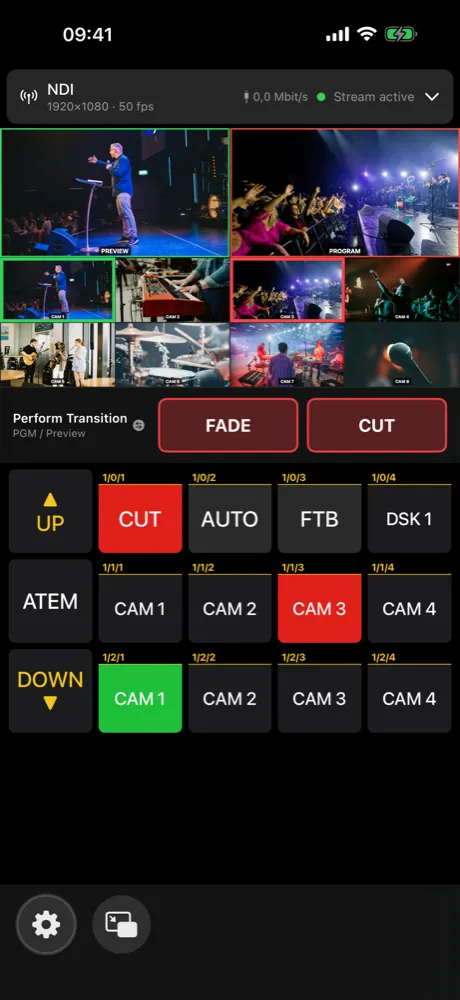
- Top: the bar with video source and status. Tap it to expand – that’s where you find Set up multiview, among other things.
- Below: the multiview. Tap a camera to switch to it.
- Middle: Transition Mode with FADE and CUT.
- Bottom: your Companion buttons (the Companion emulator) – for everything else you want to control.
- Very bottom: the gear for Settings and the Picture in Picture button.
Tip: Always keep a plan B – for example the mixer’s own control panel within reach.